
Issue a credit note and refund payments for a paid Bill in New Ledger
Bills with a successful payment attempt is marked by a green Paid status.

In TJ Ops, you can partially or fully cancel a bill and partially or fully refund the associated payment by issuing a credit note.
Understanding Credit Notes for Paid Bills
Credit note for paid bills will bear a Paid status, it will show Amount Paid since payment was taken, and the Adjustment amount as well:
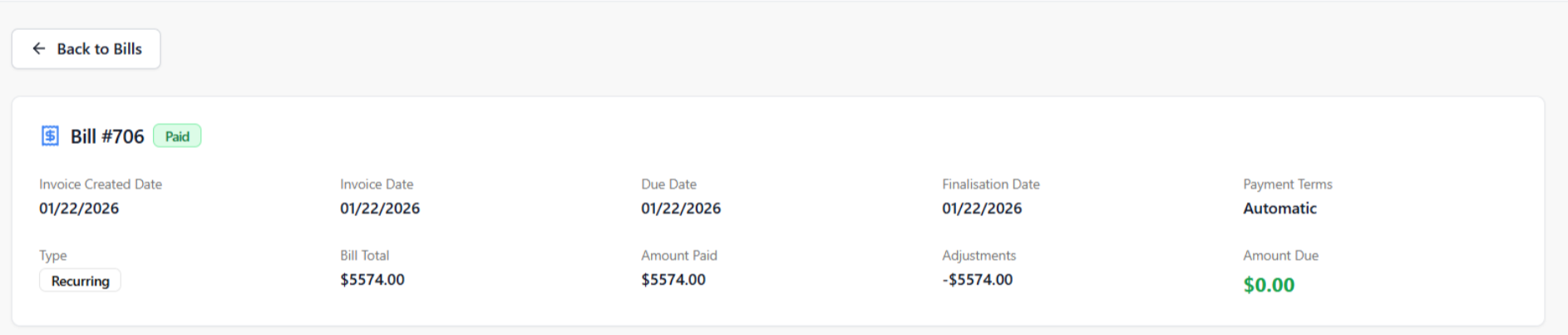
Once the refund amount is processed in the Payments Module, the Amount Paid on the Bill will turn 0, indicating the refund has been made.

When issuing a credit note, the refund amount is automatically tied to the cancelled bill amount.
Ops users cannot specify different values for the bill adjustment and the refund.
This ensures that the refunded amount always matches the cancelled portion of the bill.
To issue a credit note for a paid bill, please follow these steps:
- Click the Action button (ellipsis/ three dotted) against the Bill.
- Select Issue Credit note from the dropdown.
In the Credit Note page, you can completely or partially issue a credit note.
- Issuing a full credit note and a full refund.
a. To issue a complete credit note, leave the credit amounts against the line items as is.
The Credit total is the sum of the Credit amount against each line item of the bill.
b. For a refund, select the customer's preferred method of payment from the
Select the Allocation type dropdown and enter the same amount from the Adjustment total amount to issue a refund. The system will not let the Ops user issue a credit note if the amount is greater or less than the Credit total amount.
c. Click Issue Credit note.
- Partial cancellation of a bill/ issuing a partial credit note
To issue a partial credit note, you can enter the Credit amount (amount to be
cancelled) against each line/charge item of the bill.
The Credit Total will show the sum of all the credit amounts entered against all line items of
the bill.
Follow steps b & c from above to issue a partial refund of the bill.
Article by Roshel Jose
Please note:
- The JRNY platform is constantly evolving and new features and functionalities are added all the time. We are constantly updating the Knowledge Base, but some instructions and/or images you see in these articles may vary slightly from what you can see in your own environment. Get in touch with support@tomorrowsjourney.co.uk when in doubt.
- Some features and functionalities may require configurations or additional development to work in your environment. Please speak to us if you have any questions.