
Understanding Leads Module
The Leads Module enables back-office users to capture, track, and convert potential customers into confirmed customers.
It provides visibility into lead progress and helps your team manage follow-ups efficiently.
What is a Lead?
A Lead is a potential customer who has shown interest but has not yet completed a booking.
A lead is created in the system once the customer’s details are entered.
Ops users can manage and track leads by updating their status based on actions taken. The available statuses include:
Lead Statuses
- New: A freshly registered lead.
- Contacted: The lead has been contacted.
- Lost: The lead did not convert into a customer.
- Deleted: The lead has been removed from the list of Leads
- Archived: The lead is no longer active but stored for reference.
- Conversion: The lead has been converted to a customer successfully
- All: Displays leads across all statuses.
How to change Lead statuses:
- Navigate to the Leads submodule.
- Open the relevant status tab (for example, New) and locate the lead.
- Select the appropriate status to update the lead
- Click on the tab to see the transferred lead.
Similarly, this can be done for all other statuses.
Please note that Leads that are assigned to 'Deleted' or 'Archived' statuses cannot be assigned to other statuses, as this action is final.
There are two types of leads:
- Registered Lead: These are prospective customers who have expressed interest in out-of-stock assets on the website. They fill out the form that opens when they click on the out-of-stock assets, and they appear with a yellow 'Registered Lead' tag in the Leads Module.

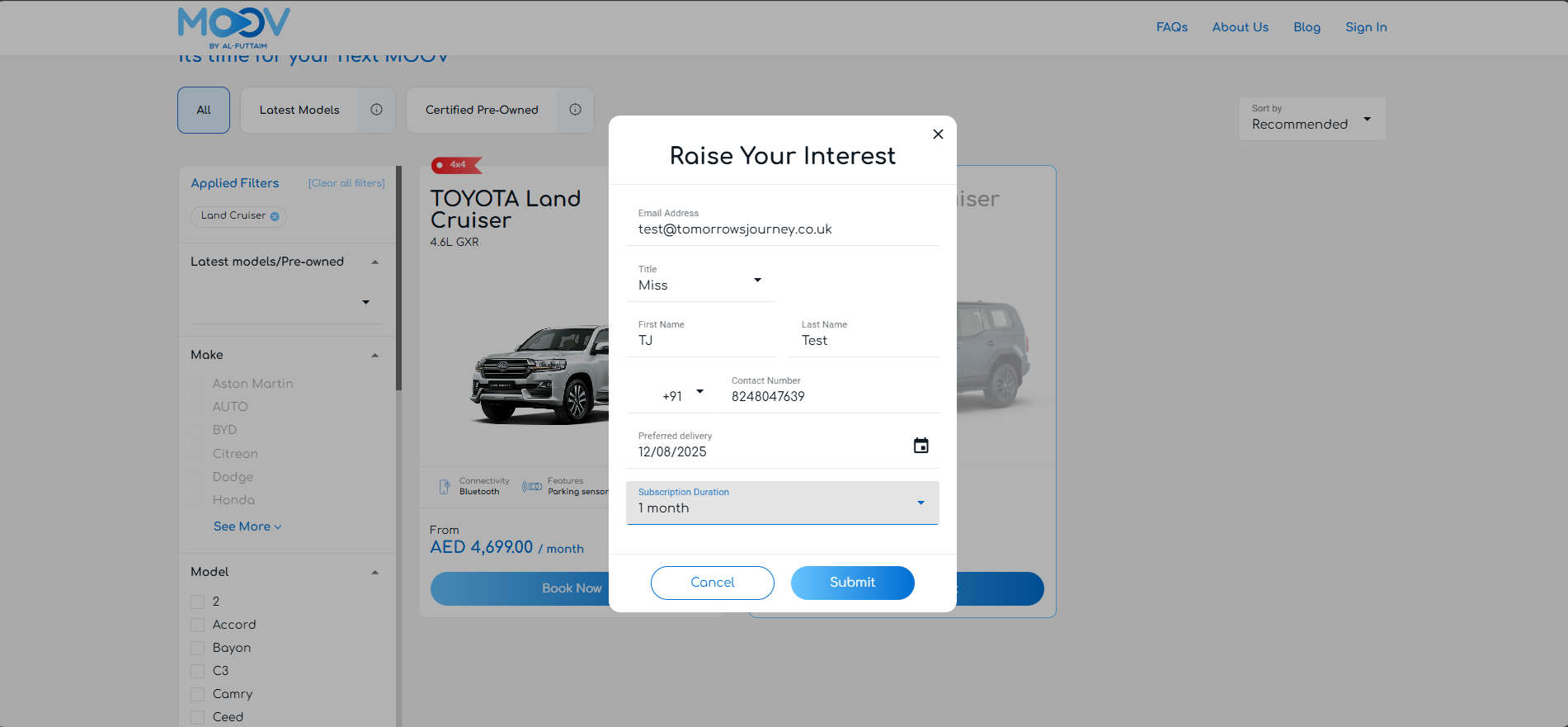
Drop-out Lead: Prospective customers go through the booking journey on demand, but drop out at some point after entering their customer sign-up details.
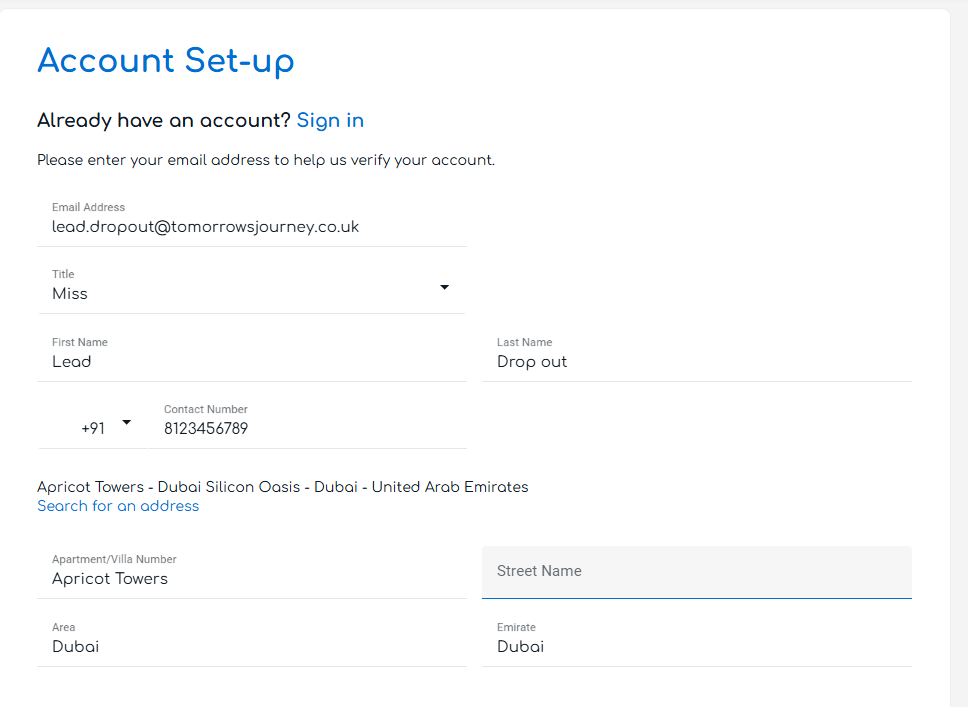
These leads will appear without any tags for an hour and will later be assigned the blue Drop out tag.
New leads are seen under the 'New' tab in the Leads module.
You can also perform several other actions in the Leads module, such as assigning tags, converting a lead to a customer, adding notes, and scheduling a follow-up date. These features will be explained in more detail in separate articles
Article by Roshel Jose
Please note:
- The JRNY platform is constantly evolving and new features and functionalities are added all the time. We are constantly updating the Knowledge Base, but some instructions and/or images you see in these articles may vary slightly from what you can see in your own environment. Get in touch with support@tomorrowsjourney.co.uk when in doubt.
- Some features and functionalities may require configurations or additional development to work in your environment. Please speak to us if you have any questions.