
How to process Failed refunds
Ops users can now manage payments whose refund attempts have failed.
When a refund is in the Refund Failed status, users have two options:
- Retry Refund – Re-attempts the refund using the original payment method.
- Mark Refund as Successful – Manually records the refund as completed. This option should be used when the refund has already been settled outside the system (for example, by cash, cheque, or bank transfer).
This feature provides greater flexibility in managing failed refunds while maintaining an accurate record of how the refund was ultimately resolved.
Steps to Manage a Failed Refund
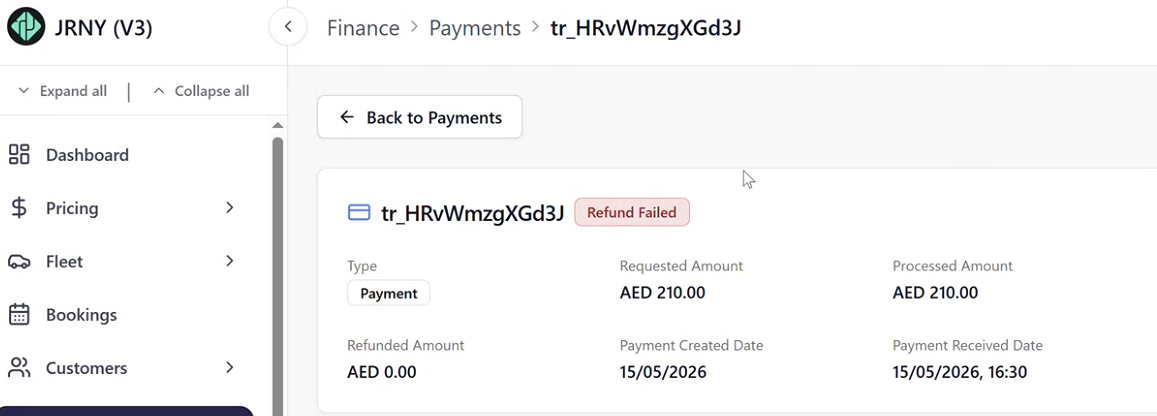
- Navigate to the Payments Module
- From the Status dropdown, pick Refund Failed to filter the payment list
- Locate the relevant payment by searching for the Booking ID.
- Click the Actions button (three-dot menu) against the payment and select View Details.
- On the Payment Details screen, scroll to locate the Refunds Section.
- There are two options for the Ops user to manage failed refunds:
- Retry Refunds - which will re-attempt the refund to the customer.
- Mark Refund as successful (tick icon) - which manually resolves the failed refund attempt. Use this option if the refund has already been completed outside the system
- When the Ops user clicks the Mark Refund as successful (tick icon) button, a confirmation modal appears:
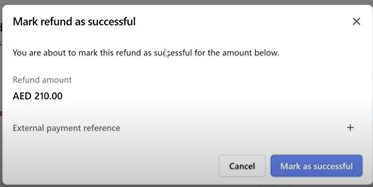
- (Optional) Add External Payment reference if applicable by clicking the + button against it to record the reference (for example, a cash receipt, cheque number, or bank transfer reference).
- Click Mark as Successful.
- A second confirmation dialog will appear, informing you that this action is permanent and cannot be undone.
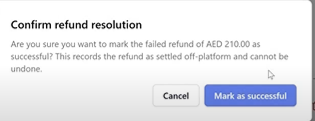
- Click on Mark as succesful, again to confirm.
A green toast notification appears at the bottom right of the screen confirming this action.
The refund status changes from Refund Failed to either:
- Fully Refunded, or
- Partially Refunded, depending on the refunded amount.
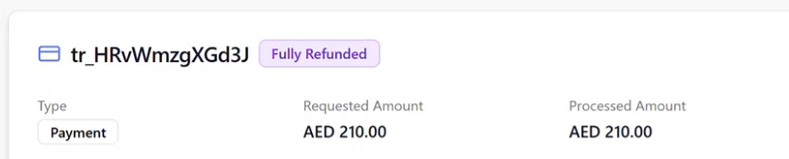
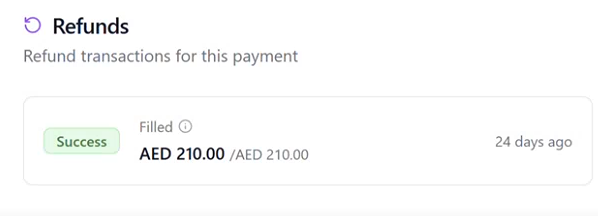
The Refunds section displays a Success status.
If entered, the External Payment Reference is saved against the refund for future reconciliation and audit purposes.
Article by Roshel Jose
Please note:
- The JRNY platform is constantly evolving and new features and functionalities are added all the time. We are constantly updating the Knowledge Base, but some instructions and/or images you see in these articles may vary slightly from what you can see in your own environment. Get in touch with support@tomorrowsjourney.co.uk when in doubt.
- Some features and functionalities may require configurations or additional development to work in your environment. Please speak to us if you have any questions.