
How to reset a password on the Back Office?
This article guides you on how to do a password reset on your Ops login page.
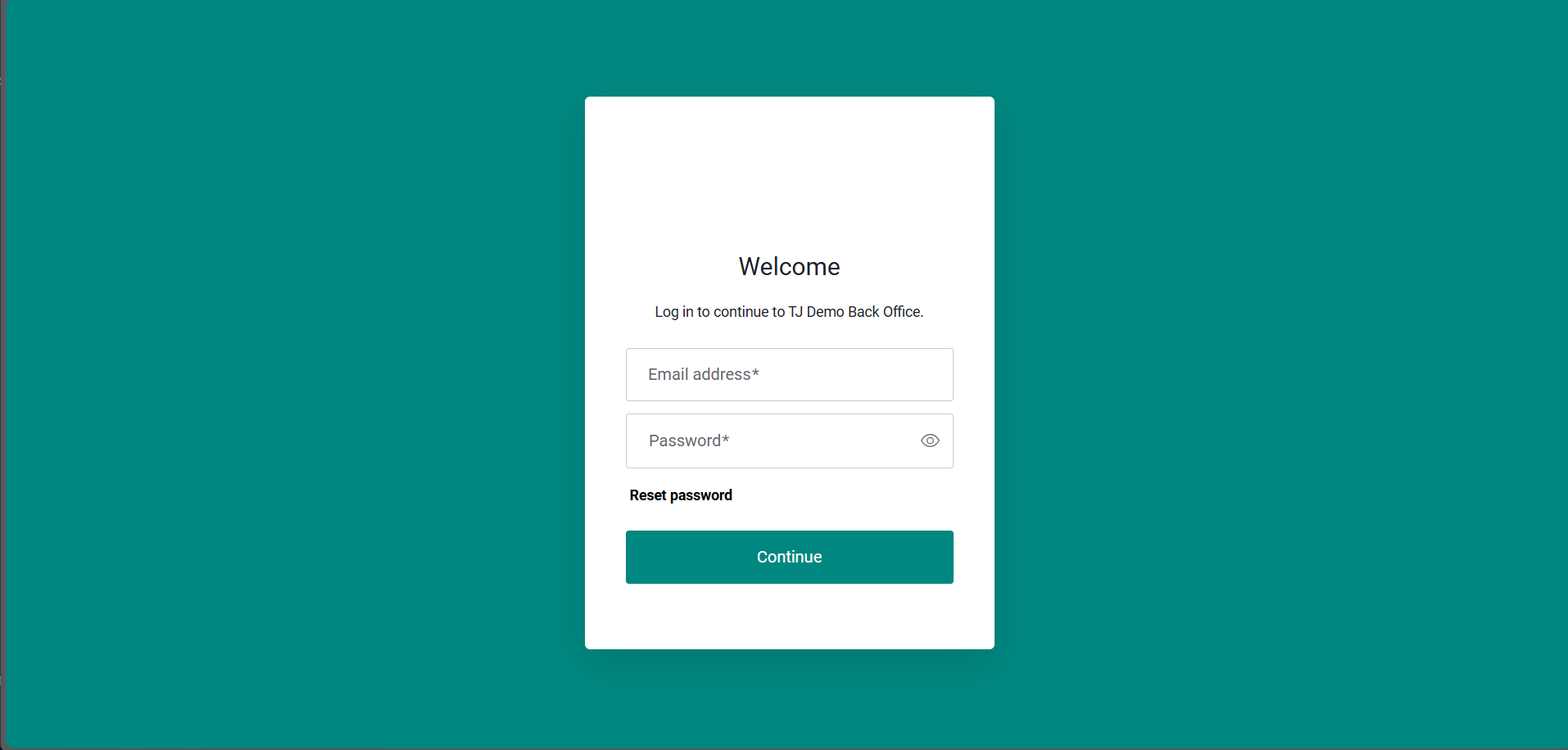
The Ops log in page would look like this:
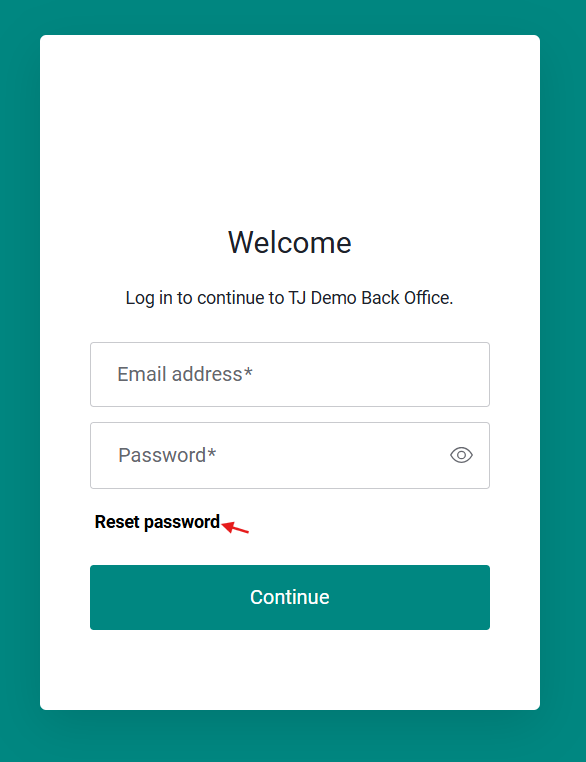
To reset password, click on the Reset Password button on the Login page:
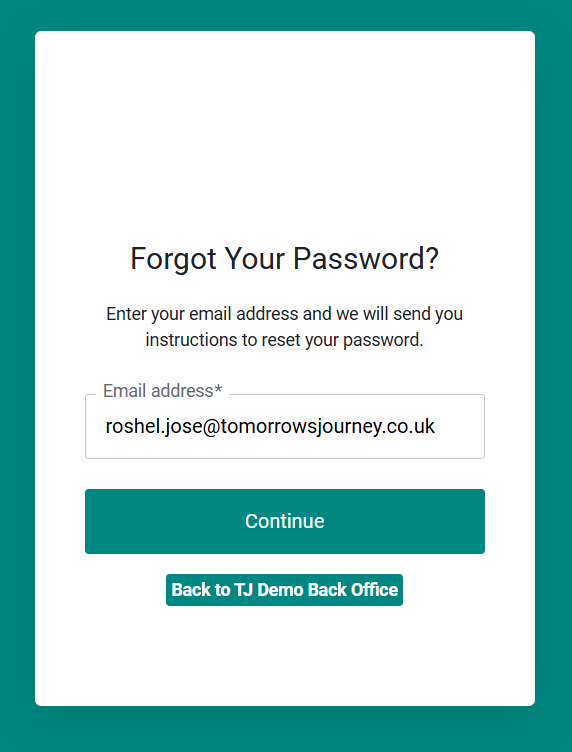
Enter Email ID to send the password reset email and click continue:
The Login Page will display a confirmation that the password reset email has been sent to the Op user's inbox:
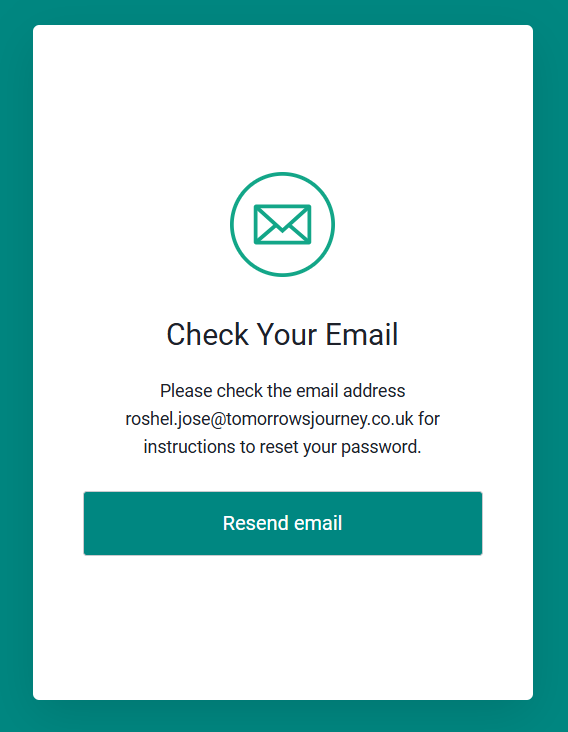
Click Resend Email to retrigger the password reset email.
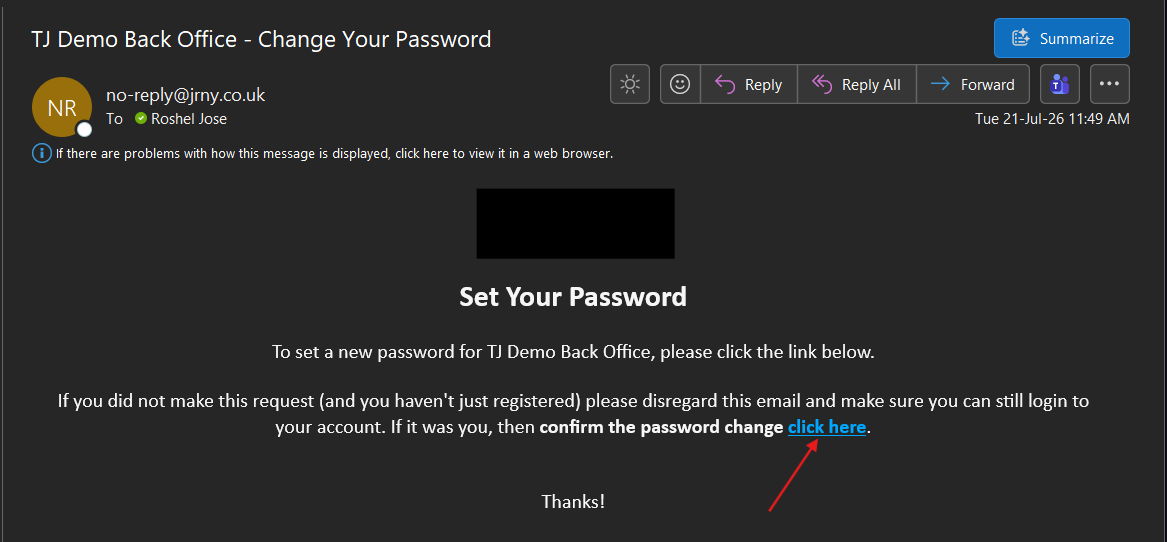
In the inbox, select click here link in the password reset email. This will redirect the Ops user to the Reset Password page to enter their new password.
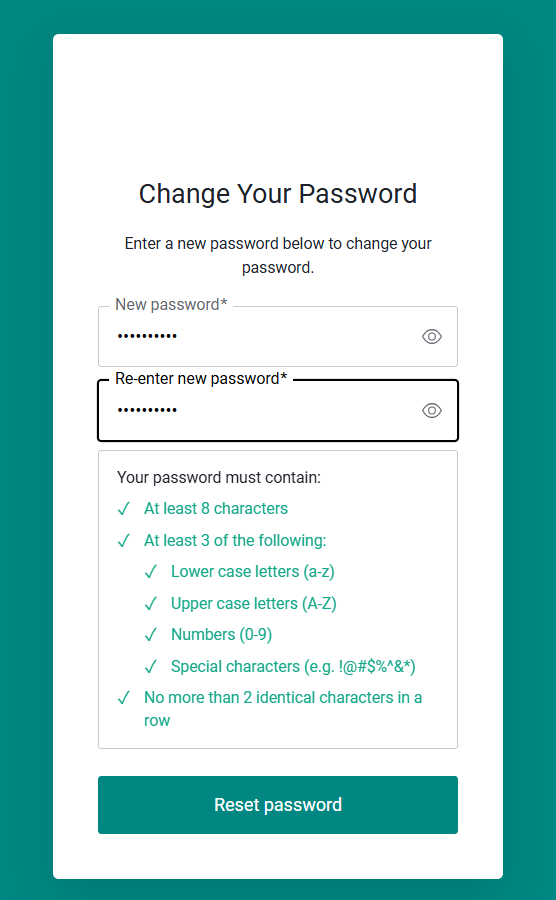
In the Reset Password Page, enter and re-enter new password and click Reset password to confirm changes.
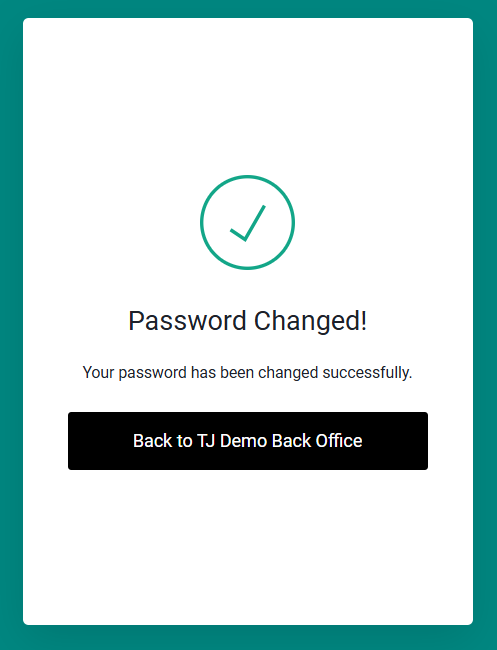
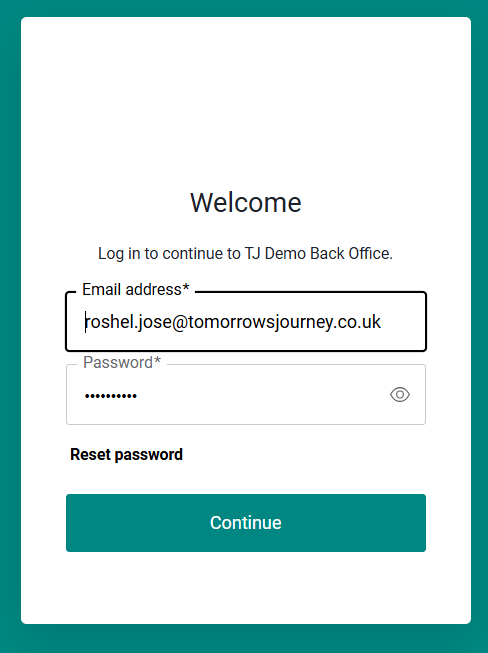
A confirmation page appears with a link to go back to Ops to log in
Article by Roshel Jose
Please note:
- The JRNY platform is constantly evolving and new features and functionalities are added all the time. We are constantly updating the Knowledge Base, but some instructions and/or images you see in these articles may vary slightly from what you can see in your own environment. Get in touch with support@tomorrowsjourney.co.uk when in doubt.
- Some features and functionalities may require configurations or additional development to work in your environment. Please speak to us if you have any questions.